
BigBearVPN (Android) Tutorial
Download App
After the download finishes, open bigbear.apk and follow the system prompts to install it. If Android warns that the app is from an unknown source or that installing unknown apps is not allowed, follow the prompt to allow installation from the current browser or file manager.
Open App
After installation, open BigBearVPN. The bottom of the home screen shows entries such as Dashboard and Settings.
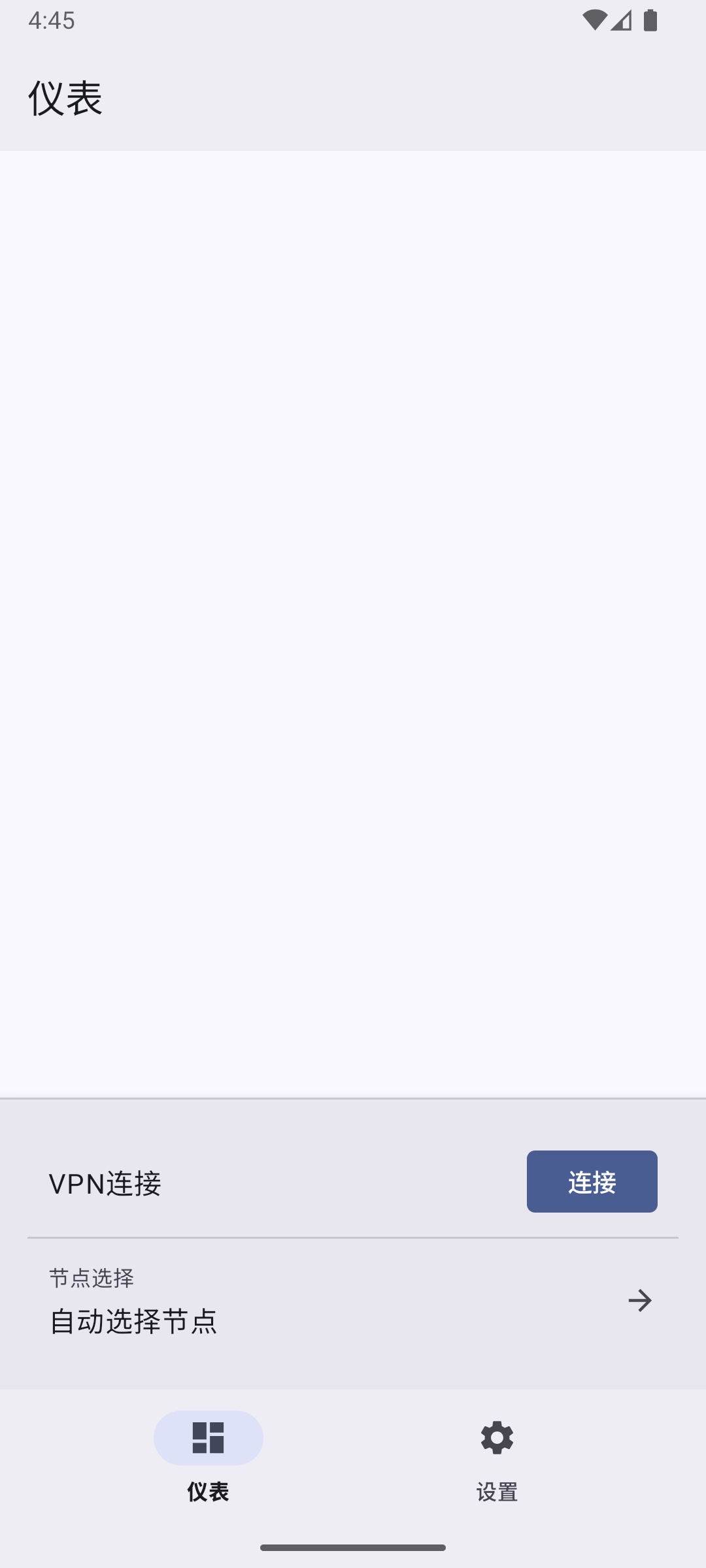
Member Nodes
- Tap
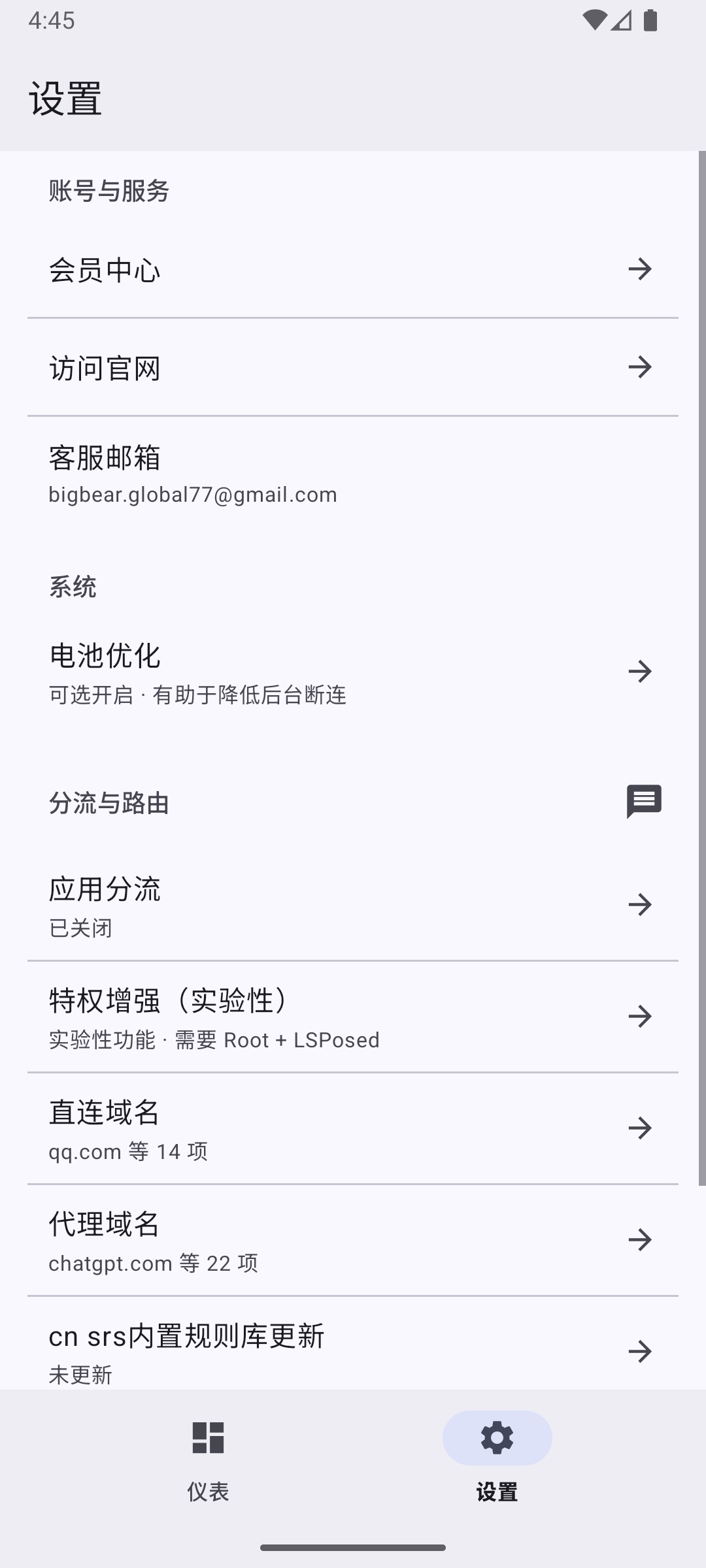
Settingsat the bottom. - Tap
Member Center, then sign in with your BigBear member account and password. - Return to
Dashboardand tapNode Selection. - Choose a node under
Member nodes. - Return to
Dashboardand tapConnect. - On the first connection, Android will show a VPN permission prompt. Allow BigBearVPN to create the VPN connection.
After the connection succeeds, the button changes to Disconnect, which means the VPN is connected.
Free Nodes
- On
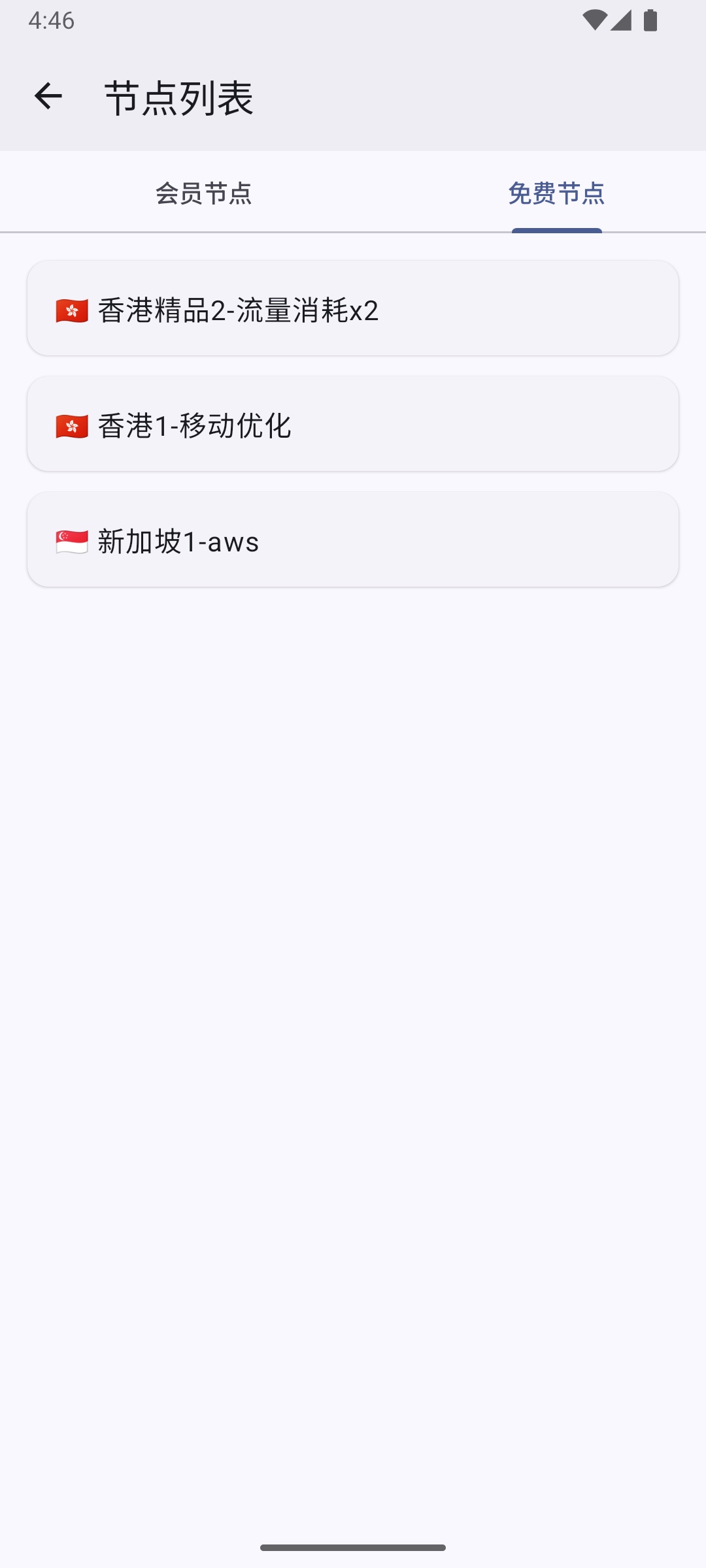
Dashboard, tapNode Selection. - Switch to
Free nodesand choose a free node. - Return to
Dashboardand tapConnect. - Non-member users need to complete a rewarded ad task. When the dialog appears, tap the ad display button.
- After the ad finishes and the reward is verified, the app will continue connecting the VPN.
Each free-node connection can use up to 1 GB of traffic.
Switch Nodes
If the VPN is already connected, tap Node Selection and choose a new node. The app will ask whether to switch to that node. After confirmation, it disconnects the current node and reconnects to the new one.
Stop VPN
To stop the VPN, return to Dashboard and tap Disconnect.
FAQs
Q1: What should I do if VPN permission is missing?
Tap Authorize in the dialog, then allow BigBearVPN in the Android system VPN permission prompt.
Q2: What should I do if the device cannot use VPN permission?
This usually means VPN configuration is blocked by device management, a work profile, parental controls, a security policy, or a system restriction. Check the device restrictions and try again.
Q3: Why are member nodes unavailable?
Member nodes require signing in with an active BigBear membership. If you do not have a membership, use Free nodes and follow the ad-based connection flow.
Q4: Do I need to change split tunneling or routing settings?
Most users can keep the default settings. Advanced settings are under Settings > Routing & Split Tunneling, where you can configure app split tunneling, Global / Rule route modes, and custom route rules.